SmartWEB is a CMS based web application whose main purpose is to help users build websites from existing elements. These elements have different shapes and perform specific functions. To work productively with them, you need to understand them well. This chapter goes through these elements and explains their purpose and behavior.
Overview
The content anatomy of SmartWEB consists of the following components:
Content Types- Defines metadata and behaviors for building specific content.Content Items- A single piece of content derived from a Content Type.Content Parts- Builds specific behavior that can be reused across content types.Content Fields- Pieces of information that can be added to a content type.

These components work together to provide a dynamic and flexible way of managing content at runtime.
Content Type
A Content Type can be seen as a category of contents. It represents what a Content Item is. The core of the notion here is in words is a. If you can say that a given content item is something, that something is likely to be the Content Type of that Content Item. Content is managed using a dynamic type system. To enhance the flexibility of the CMS, content must be composed on the fly at runtime and reflect the concerns of content management.
Content Type Example
SmartWEB comes with several content types. Users can use these types, customize them and create new content types. New content types are created by navigating to the Content Definition tab in the Admin Menu. From there you'll be taken to the Manage Content Types page. To add a new content type, click the Create new type button.

This will take you to the New Content Type page, where you can set the display and technical names, then click Create.
Naming a Content Type:
It is better to leave the technical name of the Content Type as it is generated by default unless you have a reason to change it.
To customize the newly created content type, go to the Manage Content Types page and click the Edit link for the new content type.

From the following Edit Content Types page, the content type can be edited and saved or deleted.
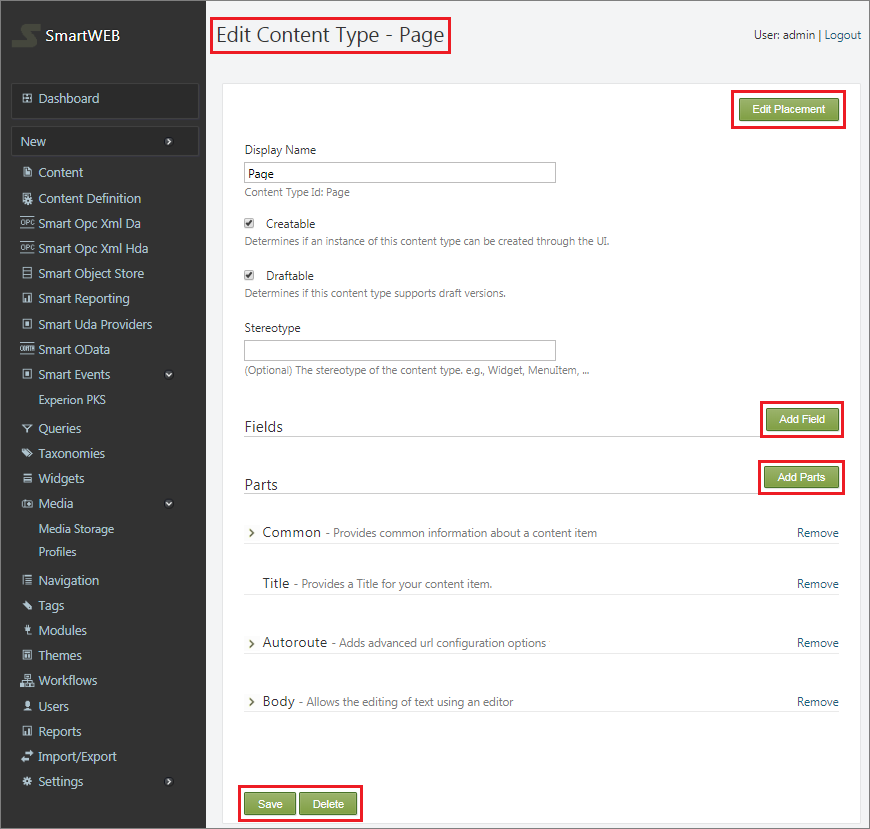
The structure Content Item Editor can be changed to have a different appearance. By clicking on the Edit Placement button in the top right corner, you'll be taken to the Edit Placement page where you can see each page element. The elements are stacked and their placement corresponds to how they will appear on the Edit Content Item page. To change the position of an element, simply hold down the left mouse button on an element and drag it over or under the elements it is to be adjacent to.

Content Item
A Content Item is a single piece of content, often associated with a unique URL (address) on the site.
Content items are instances of Content Types. They store all the data needed to manipulate and display them. An item is a concept that is close to an entity, but more focused on the idea of content. An item may appear in a list, but will usually also have its own page on the site.
Content Item Examples:
Content items are complete WEB pages such as HMI Graphic Pages or Operation Reports.
To create a Content Item, navigate to the Content tab in the Admin menu and click the Create New Content button in the top right corner. You'll be taken to the Create New Content page, where you can select a content type for the content item. Another way to create content is to select the content type directly from the New section of the admin panel. In both cases you will be taken to an editor for the corresponding content type.

For more information on creating and managing content, refer to the Manage Content chapter.
Content Parts
A Content Part is a feature that can enrich any existing Content Type without the content part and the content type having any prior knowledge of each other. Content types are made up of smaller parts, conveniently called content parts. Content parts are atoms of content that are sufficient to create a specific coherent behavior and that can be reused across content types.
Clicking the Edit link on a Manage Content Types page opens up the Edit Content Type page for that content type. From there you can add content parts by clicking the Add Parts button. To add the Content Parts to the Content Type select the appropriate checkboxes and click Save. Adding content parts automatically gives the content items behavior and attributes.

After saving Content Parts, you’ll be returned to the Edit Content Type page where you can choose to add fields or additional parts or click Save to complete.
Content Fields
The Content Fields are pieces of information that can be added to a Content Type. Unlike a content part, a Content Field is configured with a specific name that makes the field specific to the content type. Content fields are of different types and the other important difference with a content part is that more than one field of the same type can be added to the same content type.
Content types initially lack fields for capturing information such as pictures, taxonomy links, and other characteristics. To add a Content Field to an existing Content Type, navigate to the Edit Content Type page for the given type and click the Add Field button. Select the Field Type from the drop-down list, enter the Display Name (used for labels), leave the Technical Name (used in code and styling) to the default and click Save. The new field is immediately available to existing content items.

Summary
In this chapter, we have learned about the basic building blocks of the content. To fully understand the whole process of designing and creating front-end webpages, read the chapters Manage Content, Custom Content in-depth and Widgets. The Navigation and Menus chapter explains how to create site navigation and improve user experience.